
You landed, turned off airplane mode, and your travel eSIM still shows no signal or a signal with nothing loading. In almost every case this is a settings problem, not a defective eSIM, and it is fixable from your phone in under ten minutes without calling anyone.
This checklist assumes the eSIM is already installed and you are past the airport. If you have not installed it yet, the setup steps live in How to Install a Travel eSIM Before Your Flight instead. Plan details such as coverage, hotspot rules, and validity change by product, so treat the live listing on your EasyTravelData catalog product page as the source of truth, not this article.

Why “not working” almost never means a broken eSIM
An eSIM profile is a small file. Once it installs correctly, the two things that actually go wrong afterward are which line your phone is using for data, and whether that line is allowed to use the local network while roaming. Everything else, hardware faults included, is rare enough that it should be the last thing you check, not the first. Apple’s own support guidance for “SOS,” “No Service,” or “Searching” starts with the same two checks before it ever suggests a hardware or carrier problem: confirm the correct line, then force a fresh network registration.
The 10-minute order to check things in
Work through these in order. Each step takes about a minute, and most people are back online by step 4 or 5.
- Confirm the travel eSIM line is turned on. Go to Settings → Cellular (iPhone) or Settings → Network & internet → SIMs (Android) and check the travel line shows as enabled, not just installed.
- Confirm it is the active data line. On iPhone: Settings → Cellular → Cellular Data and select the travel eSIM. On Android: open the SIM you installed and set it as the data SIM. A phone can have both a physical SIM and an eSIM turned on while data quietly stays pointed at the wrong one.
- Confirm data roaming is on for that specific line. iPhone: Settings → Cellular → [travel eSIM] → Data Roaming. Android: inside the same SIM’s settings, look for Data roaming or Roaming. This is normal and expected for a travel eSIM; roaming here does not mean a home-carrier bill.
- Toggle Airplane Mode. Turn it on for at least 15 seconds, then off, and give the phone a full minute to reattach to a network. This forces a fresh registration attempt and clears more “no service” cases than any other single step.
- Restart the phone if step 4 did not help. A full restart re-initializes the modem, which a toggle sometimes does not.
- Reset network settings if you are still stuck (details below). This is the step people skip because it sounds destructive. It is not.
- Check you are actually inside the plan’s coverage. Multi-country and regional plans list specific covered countries on the product page; stepping into a neighboring country the plan does not cover looks identical to a broken eSIM from the phone’s side.
- Check your own data usage counter, not just the calendar. See the section below for where to find it.
Is the eSIM even your active data line?
This is the single most common cause, and it is invisible unless you go looking. Installing a second line does not switch your phone’s data to it. Many phones keep the original SIM or eSIM as the default data source, cellular data toggle on, everything looking “on,” while the travel line sits installed but idle. If step 2 above was the fix, you are done: no further troubleshooting needed.
What Reset Network Settings actually does (and why it will not delete your eSIM)
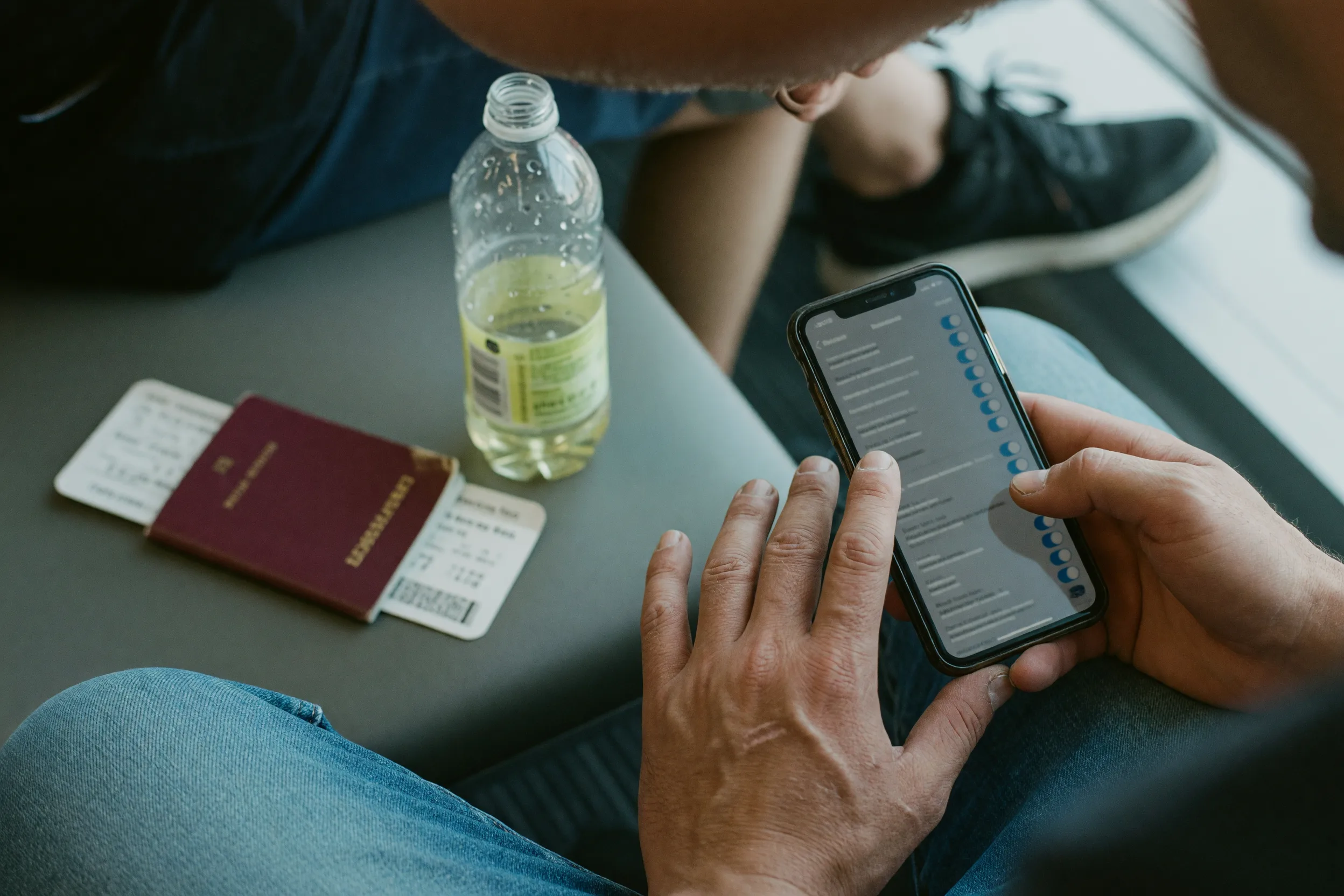
On iPhone, Settings → General → Transfer or Reset iPhone → Reset → Reset Network Settings clears saved Wi-Fi passwords, VPN configurations, and cellular network preferences, then forces the phone to rebuild its connection from scratch. Apple lists Delete All eSIMs as a completely separate option in the same menu. Resetting network settings does not touch that option and does not remove an installed eSIM profile; it only resets how the phone talks to networks, which is exactly the layer where “no service” problems usually live.
Android’s version, usually Settings → System → Reset options → Reset Wi-Fi, mobile & Bluetooth (wording varies by manufacturer), works the same way. It clears saved networks and access point settings without erasing the eSIM itself, which lives under a separate SIM management screen. Only an explicit “remove eSIM” or “erase eSIM” action deletes the profile, and that is not part of a network settings reset on either platform.
You will need to reconnect to home and office Wi-Fi networks afterward, and re-enter any VPN you use, but the travel eSIM itself stays installed and usable.
Signal but nothing loads: is it coverage or your plan?
If the top of the screen shows bars or an “E/4G/5G” indicator but pages will not load, the issue has moved past the settings layer. Two causes cover most of it:
- Coverage. Regional and multi-country plans cover a defined list, not “the whole continent.” Check the covered-countries list on the exact product page you bought, since two plans with a similar name can cover different sets of countries.
- Data or validity running out. Your phone’s own usage counter, not our site, is the fastest way to check this. On iPhone: Settings → Cellular, scroll to the travel eSIM, and look at Current Period. On Android: Settings → Network & internet → Data usage, filtered to the travel SIM. We do not run a live usage dashboard, so this on-device counter is the closest thing to real-time you will get; if it is close to your plan’s data allowance, a top-up or new plan is the fix, not another reset.
Two things that live outside the network settings entirely
A VPN or firewall app. If you run a VPN, disable it and retest before you touch anything else on this list. A VPN that reconnected to the wrong region, or a firewall app left over from a work profile, can block data completely while the eSIM itself is working normally.
Hotspot turned on before the data line was set. If you are trying to tether a laptop and it will not connect, set the travel eSIM as the active data line first (step 2 above), then turn on the hotspot. Turning on hotspot before the phone has a working data line is a common reason it silently fails, and it has nothing to do with whether the plan allows tethering, which is a separate setting listed on the product page.
Still stuck after ten minutes

If you have worked through the list above and nothing changed, two things are worth ruling out before assuming a fault: whether your device is genuinely unlocked (a locked phone can block a travel eSIM even after installing correctly, more detail in our Android setup guide), and whether the eSIM actually finished installing in the first place, which Delivery & activation covers. From there, Check your order to confirm delivery status, or contact us with the order number. Do not delete the eSIM profile “to reset it”: most travel eSIMs are one-time installs, and deleting it can mean you cannot reinstall the same profile.
FAQ
Will resetting network settings delete my eSIM?
No. Reset Network Settings and Delete All eSIMs are two separate options in your phone’s settings, and using the first does not trigger the second. You will need to reconnect Wi-Fi networks and VPNs afterward, but the eSIM profile itself stays installed.
Why does my eSIM show a signal but no data loads?
This usually means the phone is registered on a network but either the destination is outside the plan’s covered countries, or the plan’s data or validity has run out. Check the coverage list on the specific product page you bought, then check your phone’s own data usage counter for that line before assuming a fault.
Do I need to turn on data roaming for a travel eSIM?
Yes, in almost every case. Data roaming has to be enabled on the travel eSIM line specifically, which is normal and expected. It does not trigger charges on your home carrier because that line is separate from your everyday SIM.
Can two SIMs (or a SIM and an eSIM) conflict with each other?
Not usually in a way that breaks things, but they can quietly send data through the wrong line. The most common fix in this whole checklist is confirming the travel eSIM, not your physical SIM, is set as the active data line.
Should I delete and reinstall the eSIM if nothing works?
No, not as a first move. Most travel eSIM profiles are single-use installs, and deleting one can mean the same QR code or activation details will not work again. Work through the checklist above first, and only contact support if you are still stuck after that.
Conclusion
Landing with no signal or no data feels like the eSIM failed, but the fix is almost always on the settings side: the wrong active data line, data roaming switched off, or a network that needs a forced fresh registration. Work through the ten-minute order above before assuming anything is broken, and remember that a network settings reset is safe and does not remove your eSIM. Plan details like coverage and validity change by product, so treat the live listing on each product page as the source of truth before you buy your next one.
Before you buy, confirm
- Your next phone shows an Add eSIM or Add Cellular Plan option in Settings, and it is fully carrier-unlocked;
- You know where to find Data Roaming and Cellular Data (or their Android equivalents) on that specific device before you travel;
- The plan’s covered-countries list on the product page actually matches your full itinerary, not just your first stop;
- The plan’s hotspot and top-up rules match what you plan to do with it, since both vary by product;
- You have saved Check order and Contact somewhere you can reach them without data, in case you need them on arrival.
Soft next step
If today’s fix was “wrong active data line” or “data roaming was off,” you now know what to check on any future trip in under a minute. Browse plans for your next destination on the EasyTravelData catalog, including Japan, and always confirm coverage, hotspot, and top-up rules on the live product page, the source of truth, before you buy.